>
>
How To Create Fancy Text designs

Creating school shirts, university shirts, team shirts or event shirts should feel exciting. You have a group of people ready to wear something that represents them. You may want names on the back, numbers under each name, a bold team title across the front or a fun text style that makes the design stand out.
The issue is that designing custom shirts can feel confusing when you are not sure where to start. You may wonder which font will look best, what colour will work on the shirt, how big the names should be, how to add an outline or whether the text will still be easy to read once it is printed.
That is why Custom T Shirt Printing Online makes the process simple. You can use the online designer to add text, change fonts, adjust colours, create outlines, add effects and position team names or numbers on your shirt before sending the order in for printing.
Whether you are organising shirts for a school group, university event, sports team, work crew, birthday party, cruise group or family gathering, the right text design can turn a plain shirt into something people are proud to wear.
Text is often the main feature on a custom printed shirt. It might be a team name, student name, nickname, number, slogan, event title or group message. When the text looks right, the shirt feels finished. When the text is too small, hard to read or poorly placed, the whole design can feel rushed.
Many people start with a great idea but feel stuck once they enter the online designer. They may not know how to change the font, where to find the colour settings or how to make a name look more creative. This can lead to designs that do not match the vision they had in mind.
No one should have to feel lost when trying to create custom shirts for an important group or event. With the right steps, you can create text that is clear, attractive and ready for printing.
The biggest challenge is not usually the idea. Most people already know what they want printed. The challenge is turning that idea into a design that works on a real shirt.
You may want all team names to match, but each person has a different name length. You may want numbers to sit neatly under the names, but you are not sure how to keep the spacing even. You may want fancy effects, but you do not want the design to become too busy.
These small design decisions matter because they affect how the shirt looks once printed. A name that looks good on screen still needs to sit within the correct print area. A font that looks fun still needs to be readable from a distance. A colour that looks bright online still needs to work with the shirt colour you selected
Meet Claude Fullinfaw, owner of Custom T Shirt Printing Online. The business helps customers in Brisbane and across Australia create custom printed shirts with clearer design direction, better print preparation and a simple online ordering process.
Instead of leaving you to guess your way through the design, Custom T Shirt Printing Online gives you a practical path. You can create your design in the online editor, check the layout, choose your text style and submit the order for printing. For larger or more complex orders, you can contact the team so the quote can be tailored around shirt quantity, print areas, artwork requirements, timing, pickup or shipping.
This matters because custom printing should not feel like guesswork. You should be able to create a design you feel confident about before the shirts are printed.
The first step is to log into the website. Once you have selected the shirt you want to print, you will land inside the online editor. This is where you can begin creating your custom shirt design.
The second step is to click on the Add Text tab. On desktop, this tab is located near the top middle area of the editor. Once you click it, a text box will appear on the shirt design area, ready for you to edit.
From there, you can type the name, number, phrase or team title you want printed. You can then use the editing tools to adjust the text until it looks the way you want.
Fonts help set the personality of your shirt. A bold block font can work well for sports teams because it is strong and easy to read. A script or decorative font can work well for party shirts, school events or fun group shirts where personality matters.
Inside the WYSIWYG editor, you will see the font name on the left side of the page. Under the formatting section, you can browse different font options and choose the one that suits your design. You can also make the text bold or italic depending on the style you want.
When choosing fonts for team names, readability should come first. Fancy text can look great, but it still needs to be clear once printed on fabric. If the name will be printed on the back of the shirt, choose a font that can be read easily from a short distance.
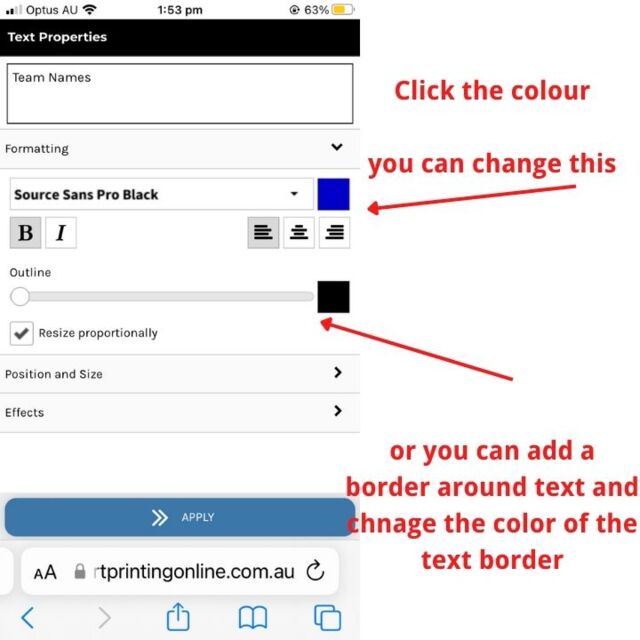
Colour is one of the most important parts of creating a good text design. The text colour needs to stand out against the shirt colour. For example, white text can look strong on black, navy or dark green shirts, while black text usually works best on white, light grey or pale colours.
In the online editor, you can change the colour of the font using the colour settings in the text editor. This allows you to match your team colours, school colours, event theme or brand colours.
If you are unsure which colour to choose, think about contrast first. A beautiful colour will not work well if people cannot read the names or numbers clearly. Strong contrast makes the shirt look cleaner and helps the printed text stand out.
An outline can make a simple name look more professional. It is especially useful when you want text to stand out against a shirt colour that might otherwise blend with the font. For example, white text with a black outline can create a strong sports style look.
In the editor, you can move the outline slider to create a border around the text. You can also change the colour of the outline so it works with your shirt and main text colour.
Outlines are helpful for names and numbers because they add definition. They can also make team shirts look more consistent when different names have different lengths.

Once your text is added, you can adjust where it sits on the shirt. The Position and Size section allows you to change the placement of the text box, resize it and rotate the text if needed.
This is useful when you are placing a team name across the upper back, a number in the centre or a small name on the front chest area. You can move the text until it sits where you want it within the design area.
When resizing text, make sure it stays within the dotted orange ant tracks. This helps keep the design inside the printable area. If your text goes outside the safe area, part of the design may not print as expected.
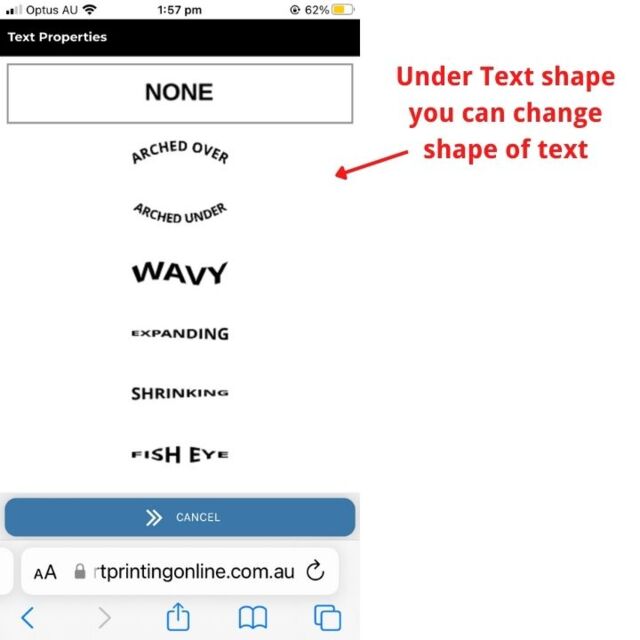
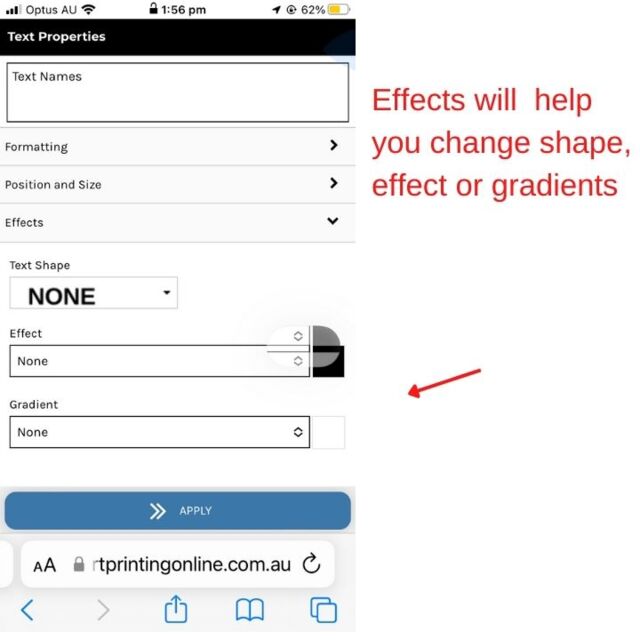
The Effects section gives you more ways to personalise your text. You can change the text shape, add shadows, create glows and use other effects that help the design stand out.
For example, you might use an arch over effect for a team name across the back of a shirt. You could use an arch under effect for a slogan or add a wavy shape for a fun school or university shirt design.
Effects should be used with purpose. A small amount of styling can make the text look great, but too many effects can make the design harder to read. The best design is usually the one that looks creative while still staying clear.
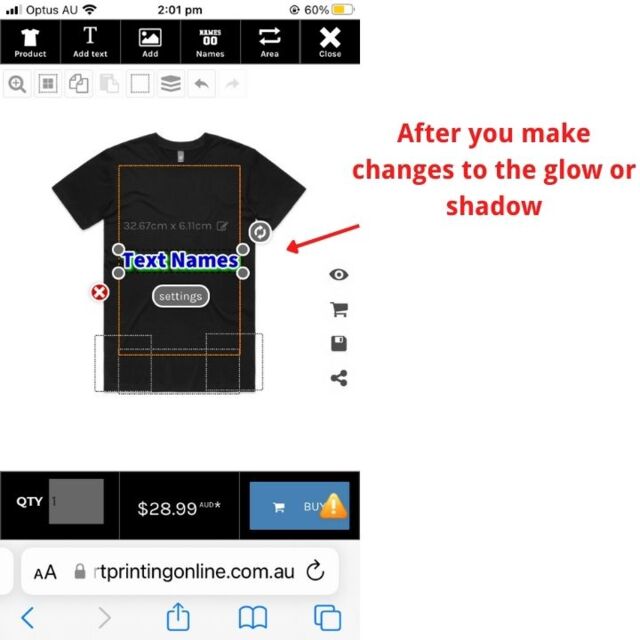
Gradient text can add a modern look to your shirt design. A gradient blends one colour into another, either vertically or horizontally. This can make a team name, event title or nickname look more eye catching.
Under the Gradient settings, you can choose the direction of the gradient and change the colours. This allows you to create a design that matches your team colours or adds more depth to the text.
Gradients work best when the colours still have enough contrast against the shirt. If the gradient colours are too similar to the shirt colour, the design may lose impact. Keep the text readable and use gradients to improve the design rather than overpower it.
When printing multiple shirts, consistency matters. You may have different names and numbers, but the overall design should still look like one team set. This is where planning makes the job easier.
Start by designing the first shirt carefully. Choose the font, text colour, outline colour, size, position and effects. Once you are happy with the first design, write down the settings you used.
This simple step can save time when creating the next shirt. It also helps you create an exact match across all shirts so the final order looks organised and professional.
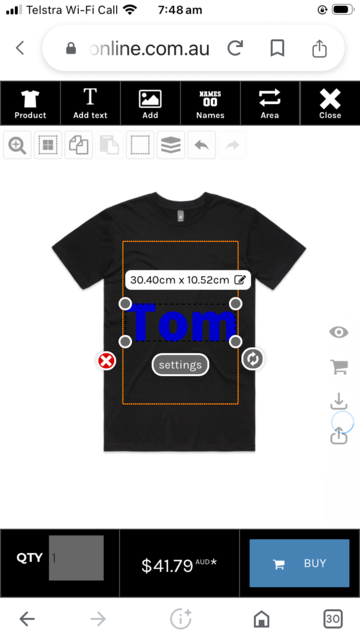
On mobile, the layout is different from desktop. After you click the shirt you want, you will come to the online designer. The menu bar is located at the top of the designer and includes options to add products, add text, add images, add team names and numbers.
For this example, choose Add Text. Type the text you want printed. You will see the text appear in the centre of the mobile screen, often large and blue when first added.
You will also see the dimensions in a white banner above the text. To adjust the size, click the small pencil icon and type the width into the left box. The height will adjust appropriately so the text stays in proportion.
To change the colour of the text on mobile, click the small oval box called "Settings" under the name you typed. This will open the WYSIWYG editor. The layout is similar to the desktop version, but arranged for a smaller screen.
From there, you can change the font style, colour, outline, position, size and effects. This gives you control over the look of the text even when designing from your phone.
Mobile design is useful when you want to create a shirt quickly, but take your time before submitting the order. Check the name, number, spelling, placement and colour carefully. A few extra minutes of checking can help avoid mistakes.
If you rush the design, the final shirt may not look the way you imagined. The font may be too thin, the text may be too small or the colour may not stand out against the shirt. For team orders, names and numbers may look uneven if the same settings are not used across each shirt.
This can lead to wasted time, frustration and disappointment. It can also create stress when shirts are needed for a specific event date. No one wants to open a finished order and realise the design could have been clearer, bolder or better placed.
The good news is that the online designer gives you the tools to make better decisions before the job is printed. When you follow a simple process, you reduce confusion and increase the chance of getting shirts your group will enjoy wearing.
Custom T Shirt Printing Online helps make the process easier because you are not just uploading text and hoping for the best. You have access to an online designer that allows you to create the layout, review the look and send the design in for printing.
For smaller orders, you can place the order through the shopping cart online. For larger orders or more detailed jobs, you can send your request through the website so the quote can be prepared based on the number of shirts, print areas, print size, timing, artwork needs, pickup or shipping.
Once the quote is approved, mockups can be prepared for approval. After the mockups are approved and payment is completed, the job order is created. This gives you a clearer process and helps reduce uncertainty before printing begins.
Select the shirt you want to print and open the online editor. This gives you the design space where you can add names, numbers, logos or other artwork.
Click Add Text, type the name or message and use the editor to change the font, colour, outline, size, position and effects. Keep the text readable and make sure it stays within the safe print area.
Check the spelling, placement, colour and sizing before submitting the order. If you need help with a larger or more complex order, contact Custom T Shirt Printing Online so the team can guide you through the next step.
Imagine handing out shirts to your team and seeing everyone smile because their name is printed clearly. The numbers match, the colours look right and the design feels like it belongs to the group.
That is the goal of good custom shirt printing. It is not just about adding words to fabric. It is about creating something people feel connected to.
When your design is set up properly, your shirts can help create unity, confidence and excitement. Whether the shirts are for a school event, team trip, university group, sports day or special occasion, the right text design helps make the memory stronger.
If you want to print team names on shirts, add numbers or create fancy text designs, Custom T Shirt Printing Online can help. Use the online designer to start creating your shirt or get in touch for help with a larger order.
Call Custom T Shirt Printing Online on 0422442029 or visit our online shop to start your custom shirt order today.
Do not let confusing design tools or poor print choices hold your group back. Create the design, check the details and let Custom T Shirt Printing Online handle the printing so your shirts look the way you planned.
After selecting your shirt, open the online designer and click the Add Text tab. A text box will appear on the shirt design area where you can type your name, number, slogan or team title.
Yes. In the WYSIWYG editor, you can choose different fonts under the formatting section. You can also make the text bold or italic depending on the style you want.
Yes. You can use the outline slider to add a border around the text and choose a different colour for the outline. This is useful when you want names or numbers to stand out more clearly.
Yes. Under the Effects section, you can change the shape of the text by using options such as arch over, arch under or wavy effects. These options can help create a more personalised shirt design.
Create the first shirt design, then write down the font, colour, outline, size, position and effect settings. Use the same settings for each new name and number so the shirts look consistent.
Yes. On mobile, choose the shirt, open the online designer and use the top menu bar to add text. You can then edit the text size, colour, font, outline and effects from your phone.
Check spelling, shirt size, text placement, colour contrast and whether the design stays inside the dotted orange print area. This helps reduce mistakes before the order is printed.
You can contact Custom T Shirt Printing Online for help with team shirts, names, numbers and custom text designs. Call 0422442029 or visit https://customtshirtprintingonline.com.au/ to get started.
